
Wi-Fi heatmaps, drawn on your actual floor plan.
Fringe Signal turns an iPhone into a Wi-Fi survey kit. Scan a room with LiDAR, walk around while it takes signal readings, and see exactly where coverage fades.
Coming soon to the App Store
For iPhone and iPad. Scanning needs a LiDAR-equipped Pro model.
—dBmNo readings yet
0 readings. Taking a reading every few steps.Your turn: move across the plan to add readings.Measuring wherever you point.
Three steps, one walk around the house.
Scan the room
Point your iPhone around the room. Apple’s RoomPlan uses the LiDAR sensor to trace walls, doors and windows into a floor plan, to scale.
Walk and measure
Readings start with the scan. The Fringe Signal Shortcut reports signal strength about once a second, and each reading is pinned to where you were standing.
Read the map
Strong areas show teal, weak ones turn orange and red. Tap anywhere on the plan for the estimated signal there and the nearest real reading.
What you’ll learn about your network.
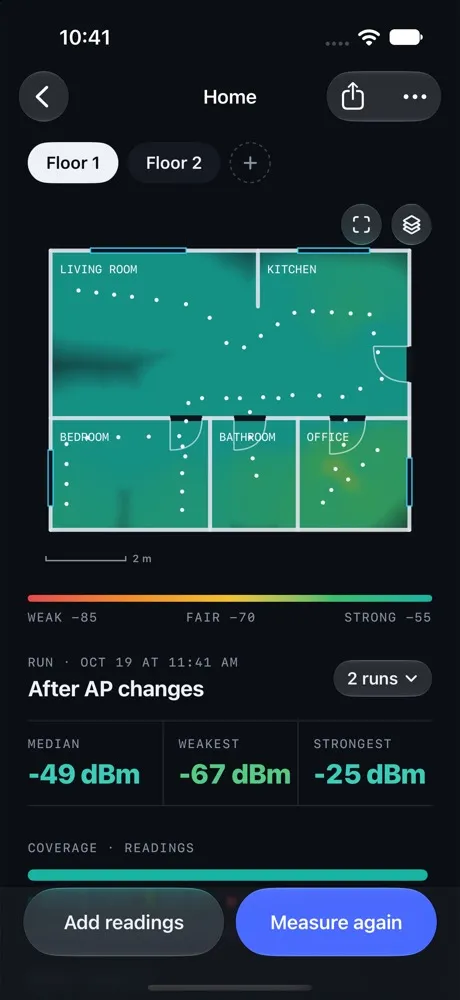
Which rooms are weak, and by how much
Every run shows its median, weakest and strongest readings, plus how much of the floor is strong, fair or weak. Areas you didn’t walk stay blank, so the map never invents coverage.
Moved the router? Choose Measure again to record a new run on the same floor, then switch between runs to compare the heatmaps.
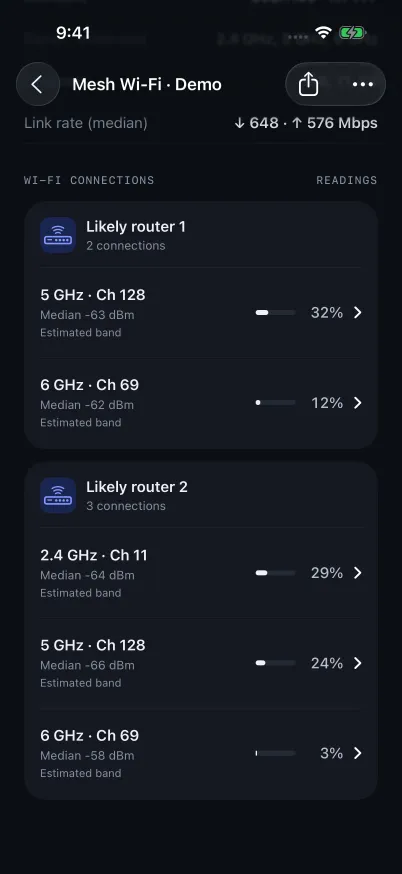
Which mesh node you’re really on
Readings are grouped by likely router, with band, channel, median signal and share of readings for each connection. You can tell whether your phone moves between nodes or clings to one.
Signal-to-noise ratio, noise floor, Wi-Fi standard and link rate are there when you want the detail.
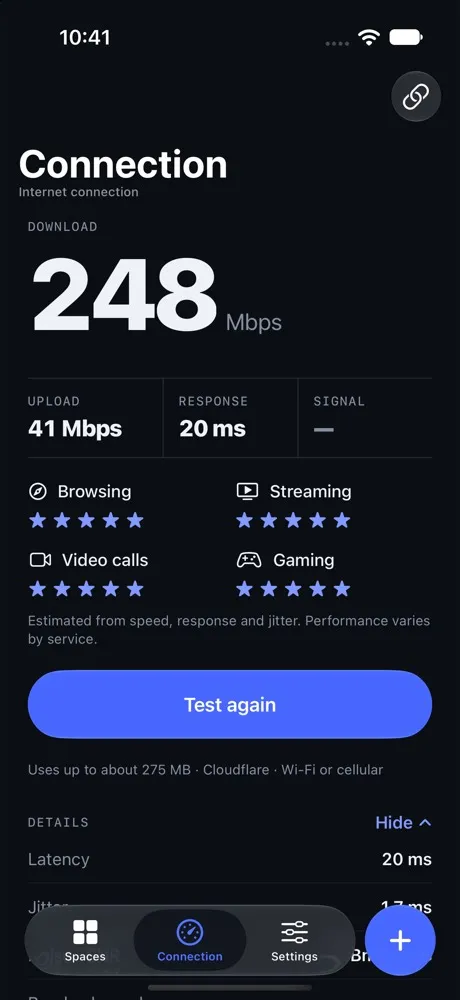
Whether it’s the Wi-Fi or the internet
A strong signal with slow pages points at your internet provider, not your router. The built-in speed test measures download, upload, latency and jitter against Cloudflare’s network.
It works on any iPhone or iPad, with no LiDAR or Shortcut needed.
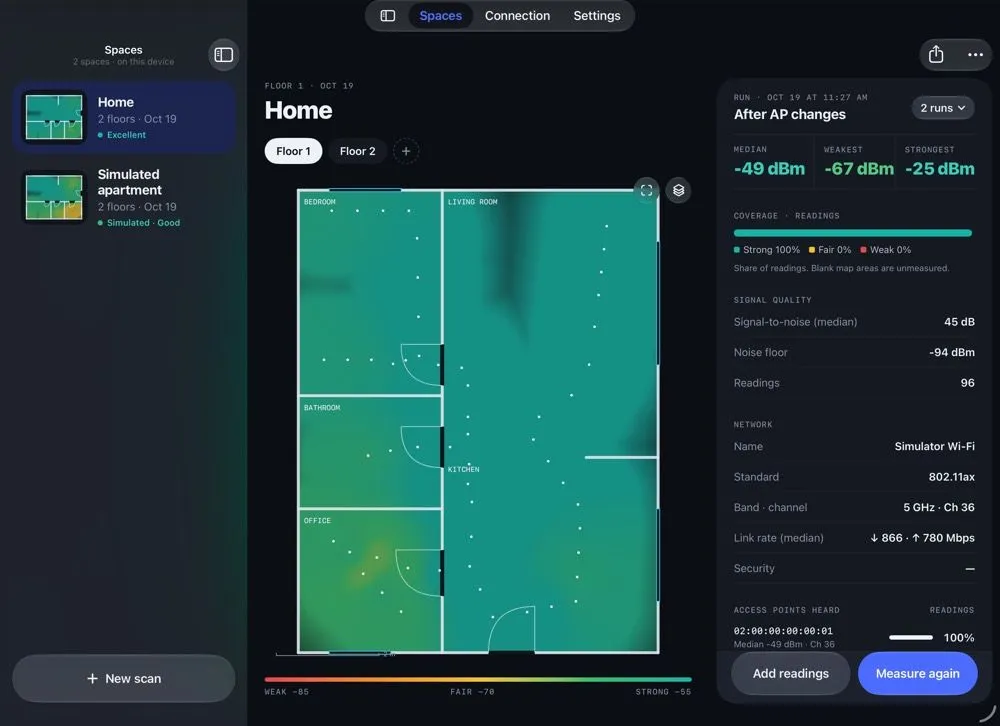
Built for real houses.
- Every floor
- Add a floor to a saved space and scan it separately. Each level keeps its own plan and readings.
- Pick up where you left off
- Reopen a saved space to extend the scan or add readings. The app lines your phone back up with the saved room.
- Share the map
- Export a floor as a PNG, or every floor as one PDF, for a landlord, an installer or your ISP.
- On all your devices
- Spaces sync through your private iCloud, so you can open them on an iPad that can’t scan.
What you need
- An iPhone or iPad with LiDAR to scan and measure: iPhone 12 Pro or a later Pro model, or iPad Pro (2020 or later).
- iOS 26 or later.
- The free Fringe Signal Shortcut. Setup adds it for you and runs a 10-second test.
- Any other iPhone or iPad can open synced spaces and run the speed test.
Your data
- No account. Floor plans and readings stay on your device and in your own iCloud. You can turn sync off.
- Speed tests go straight to Cloudflare. Results aren’t uploaded anywhere else.
- Usage analytics and crash reports help fix problems. Turn them off in Settings → Help & privacy → Privacy & data.
- The privacy policy has the full details.
Questions
Why does Fringe Signal need a Shortcut?
iOS doesn’t let App Store apps read Wi-Fi signal strength directly. Apple’s Shortcuts app can, through its Get Network Details action. The free Fringe Signal Shortcut collects those readings and passes them to the app while you scan. The first launch walks you through adding it and runs a 10-second test so you know it works before your first walk.
Which iPhones and iPads can scan?
Scanning and measuring need the LiDAR scanner, which is on iPhone 12 Pro and later Pro models and iPad Pro (2020 and later), running iOS 26 or later. Other iPhones and iPads can still open your synced maps and run the internet speed test.
Are the readings real dBm values?
Yes. Each reading is the RSSI of the network you’re connected to, in dBm, along with noise, signal-to-noise ratio, Wi-Fi standard, channel and link rate when iOS provides them. When a value isn’t available, the app shows it as unknown instead of estimating it.
Can it scan nearby networks or check channel interference?
No. iOS only reports the network your phone is connected to, so Fringe Signal measures that connection. It doesn’t list neighboring networks or run a channel survey.
Does it work in a house with more than one floor?
Yes. Save a space, then use Add floor to scan the next level. Each floor keeps its own plan, readings and heatmap, and PDF exports include every floor.
Will it tell me where to put my router?
It shows you where coverage is weak and by how much. After you move a router or add a mesh node, choose Measure again to record a new run on the same floor, then switch between runs to see what changed.
Find the dead zone before you buy another router.
Coming soon to the App Store